

Do you dream of publishing a book?
I did, too.
Yet, for a long time I thought my only option was traditional publishing.
That is, until I found out about Amazon self publishing. Using Amazon’s Kindle Direct Publishing (KDP Publishing), I have self-published two books—each of which took me a few months to write and less than a week to actually publish!
Now, I want to help YOU do the same. This post takes you step-by-step through my self-publishing journey—so you can decide if it’s right for you.
Click here to go straight to the steps for self-publishing below.
Why I Chose to Self-Publish a Book
You can click here to read the full story behind my devotional book, but I’ll share a bit below. (You can also view my eBook and paperback on Amazon here.)
It’s funny how the reality of a dream fulfilled rarely looks the way you once imagined it. At least, that’s been my experience.
My childhood dream of becoming an author looked like publishing through a traditional publishing house—not Kindle Direct Publishing. Although, in my defense, Amazon and Kindle weren’t around back then.
My dream also looked like writing fiction. That’s what I read. That’s what I knew. In fact, I avoided most non-fiction books for over half of my life because they felt boring and hard to finish.
Lastly, I never imagined I’d write a non-fiction, Christian book. Even though I grew up reading the Bible in church, I did not feel adequate to teach anything biblical. That seemed like a gift only super Christians possessed. Not me. I loved to listen and learn about God, but the idea that I could be any sort of spiritual leader only gave me imposter syndrome.
Yet, here I am, a self-published author of a non-fiction, Christian devotional book.
I believe God created younger me with that desire to write a book. And, He created me with a love for reading and writing because writing a book was part of His plan for my life. Regardless of how I imagined it. Regardless of the path that got me to this point. God gives us passions and loves to help us see them through.
He certainly helped me write my devotional. Though I was obedient to do the writing, I needed His guidance and wisdom every step of the way.
So, that’s my story. Now let’s dive into the HOW of self-publishing.
If you, too, dream of writing a book, I hope this helps you take a step and make it happen!
Note: This is not meant to be an exhaustive list. I simply want to share briefly what I did to give you an idea of the process if you’re considering it yourself. Feel free to reach out to me if you have any questions I don’t cover in this post.
1. Research on How to Self-Publish a Book
Personally, I had no idea where to start or even if self-publishing was the best way for me.
I found a few podcasts on writing a book that discussed the pros and cons of self-publishing vs. traditional publishing. Understanding the process for both helped me reach a decision and feel confident in my choice to self-publish. For you, that might be different, so I encourage you to seek out information to be sure.
In the process of researching, I also came upon a book on self-publishing that gave me insight into all the steps. This way, I had an actionable plan to follow instead of working aimlessly without a guarantee I was doing it right.
Here are a few podcast episodes and the book I recommend:
- (podcast) She, by Jordan Lee Dooley
- (book) Published. The Proven Path From Blank Page To 10,000 Copies Sold by Chandler Bolt
- Note: the ebook version is free through this link! (not sponsored)
2. How to Start Writing Your Book Draft
If you know what you want to write about, great! If not, that may require more research.
Personally, I knew I was writing a devotional for women pursuing eating disorder (ED) recovery. My next step was outlining the topics by day and then actually digging into the Bible—and my past experience recovering from an ED—to create a draft.
Writing my draft took dedication to write anywhere from 5 to 15 hours per week for about a month and a half. Of course, that was for about 68 Google doc pages, not a novel or even a longer non-fiction book. Yet, it also required a LOT of time in God’s Word, plus prayer, and careful consideration for my target audience and what I hoped they would get out of it. The writing itself was fairly quick. It was the preparation for the writing that took the longest.
For an idea of how long it might take you, consider:
- How much time you have to dedicate each day or week. For me, I didn’t have to make time, but I did have to prioritize the time instead of watching TV or scrolling on my phone.
- How quickly you generally write. That will vary, but, it may go quicker if it’s a subject you’re especially passionate about—and I hope it is!
- How much research you’ll have to do. Again, this will vary. Maybe your book requires little to none. Maybe it requires a LOT. If the latter is the case, pace yourself and find a system that works for you—whether that’s doing all the research upfront, or doing research for one section and stopping to write before researching the next section. You know how you work best, so you do you.
Essential Parts of a Published Book
Depending on the type of book you write, here are other parts to consider in addition to the main text:
- Title page — includes title, subtitle, and your name as the author
- Copyright page — the book Published I referenced above goes in detail on creating this page, but you can also find useful information and templates here.
- Forward — not necessary unless you would like to include an endorsement from someone else at the front of your book
- Table of Contents — if your book has chapters, you’ll want to include chapter titles and page numbers for easy reference
- Introduction — this is where you introduce yourself, why you wrote the book, and what you hope readers will get out of it
- Body of the book — generally, organized in chapters, but not always
- Works cited page — I only cited a few sources and opted to share the source as a footer on the page; however, if you cite a lot of sources, it may be best to include a works cited page at the end of your book using the MLA format
- Epilogue — completely optional if you’d like to close your book with a summary or conclusion
- Other resources — the beginning or end of the book is a great place to add a call to action (CTA) for readers to engage with your website, podcast, other books, social media, etc. (My devotional book includes a music playlist at the end.)
Do You Need Permission to Use Bible Verses in a Book?
It depends! If you plan to write a Christian book with scripture, the version and number of verses you use will determine if you need permission.
This was news to me, I’ll admit. I naively thought anyone could quote any version of the Bible in a book. No questions asked. But nope. It’s a bit more complicated than that.
For my devotional, I decided to use a few versions that are in the public domain (aka. available for public use with no copyright restrictions). Here is a list of public domain Bible versions.
All versions that aren’t in the public domain will require you to include copyright information on the copyright page of your book. The NIV is one such version.
I learned that I could use the NIV version without permission because the percentage of NIV verses to total text was low enough. However, I did still have to include a copyright statement for the NIV version on my copyright page.
Click here to see a list of version and the copyright information (and restrictions) for each. You’ll need to scroll down to see the English version list, and then click on the individual version to see both the copyright statement to put in your book, as well as any permission requirements. Each version is different, so be sure to click on every one you want to use!
3. Proofread Your Book Draft
Even though you’re probably proofreading as you go, don’t rely on that alone. Once you finish what you feel is a solid draft, read it from start to finish again and check for misspellings, grammar, and overall flow. Make changes as you go.
If you know an especially good proofreader—family or friend—who is willing to look it over for you, that doesn’t hurt.
Your goal here will depend on whether you plan to hire an actual editor or not. Yes, you can hire an editor even if you self-publish, which leads me to my next step.
4. Do You Need to Hire an Editor for a Self-Published Book?
This is completely up to you and your ability to edit. If you feel your manuscript draft is perfect or nearly perfect, you may opt to skip finding an editor.
I did not skip it.
Being my first foray into self-publishing, I wanted to do it right. The book Published I mentioned above has an entire chapter on deciding whether or not you need an editor and how to find one if you do. Freelancers are generally the way to go; however, I found a Christian company that offered what I needed—basic editing services at an affordable rate. The company is Affordable Christian Editing, if you’re interested.
If you go the freelance route, I can’t speak to that, other than offer a few freelance sites to check out: Upwork and Fiverr. I’ve not personally used these, but I know you can find editors using either one. The price will vary by who you hire and how much work they need to do for you.
Tip: Look for someone who has experience in the genre of your book, if possible. That’s why I ended up using Affordable Christian Editing, because of the editors’ experience with Christian-based books specifically.
For my devotional book, the editing process took about a week. That included emails back and forth with my editor to discuss details and also her workload at the time. Don’t expect an editor to be available immediately and have it done in a day or two—especially if your book is longer than mine, which is likely.
5. Do You Need to Hire a Formatter for a Self-Published Book?
Because I planned to publish my book as both an eBook and a paperback through Kindle Direct Publishing (KDP) via Amazon, I knew I needed two versions.
Maybe you only want an eBook version. Maybe only paperback. Or, maybe you want both plus a hardcover book. Whatever you decide, your book’s pages need to be formatted correctly for each type.
This includes not only the page dimensions, margins, line spaces, and page numbers, but also the style of the book—things like font, how the chapter titles look, how graphics or images will be shown (if any). These are only a few aspects of formatting and I quickly realized it would take a LOT of time for me to figure it out for myself—and maybe still not get it right—or, I could pay someone to do it.
So, I used Affordable Christian Editing for formatting services, too. You could also go the freelance route with formatting.
Tip for eBook version: Whether you hire someone or do it yourself, I recommend making your table of contents clickable with hyperlinks to each chapter.
6. How to Create a Book Cover for Amazon Publishing
Book cover art is also something you may consider hiring out. It depends on your personal skill level with digital art. Or, maybe you know someone willing to design a cover for you.
If you can’t do it yourself and don’t know anyone artistic… finding a freelance cover designer is your best bet.
Things to consider about book cover design:
- eBooks only need a front cover
- Paperback and hardcover books need a front cover, spine, and back cover
- The size of the book (if you opt for paperback and/or hardcover)
- Choosing a standard size will likely be easier for formatting and cheaper to print
- Standard sizes include: 5″x8″ or 5.5″x8.5″ and 6″x9″
- But, I encourage you to consider the type of book and what makes the most sense for your content and audience
- Once you know the size of the book and the number of pages, you can use the KDP cover calculator and template generator to determine the exact margins and trim area to use for your cover design.
- Next, I downloaded that KDP template to use it as a template to create my cover in Canva. (This works with the free version of Canva!) Here’s what I did in Canva:
- I used the total length and width from the KDP template to “Create a Design” in Canva with a custom size. Be sure to change from pixels to inches. This creates a blank Canva design.
- I uploaded the template to the blank Canva design and then layered my book cover design over it.
- The cover design will include front, back, and spine. You can either add each image to the design separately, or use an image file with front, back, and spine saved as one rectangular image.
- Note: I already had a design created that I saved. If you want to create a design completely in Canva, you can also do that at this step.
- Lastly, I deleted all of the template layers so only my cover was left. Be sure to delete even the small text from the template. I missed deleting a tiny bit of text that blended into my cover, and KDP did not approve my book till I removed it.
7. How to Use Amazon Kindle Direct Publishing (KDP) to Publish Your Book
How to Create an Amazon KDP Account
If you already have an Amazon account, this step is easy. Visit https://kdp.amazon.com/ and sign in with your existing Amazon Account.
Not an Amazon user? Click “Sign up” and go through the steps. I signed in through my Amazon account, so I’m not able to speak to this process.
How to Set Up Your Amazon KDP Account
After logging in, click “Your Account” at the top of the screen. This will take you to your profile page where you’ll want to verify and complete the following:
- Author / Publisher Information: Business type (individual or corporation), name, date of birth, and contact information.
- Getting Paid: Sync up your bank account or the account where you’d like your book sale royalties to go.
- Tax Information: Complete a few details to verify your individual or corporate tax information.
- Yes, you will have to pay taxes on any profits you make from selling a book.
- Also, I recommend doing this several weeks before you plan to launch your book. The tax information you submit does go through an approval process.
Utilize the Amazon KDP Help Center
For those who have no idea what to do next, the Help Center is a fantastic resource. Click the “Help” header at the top of your KDP account to access it.
On the lefthand side of the Help Center, you’ll see multiple categories with links to subcategories. Each offers more information on topics like:
- Setting up your account
- Formatting your book (if you choose to do it yourself)
- How to create a book or series
- Your Amazon store and detail page
- Marketing and distribution
- How to update your book
- Payments and reports
- Legal and content guidelines
- User guides
Through the Help Center, you can also reach out to Amazon via a “Contact us” button, if you can’t find the answer to a question.
I recommend reading through as many of the Help Center categories as you need. It’s possible not all will apply to you—for example, if you’re not publishing a hardcover book, that subcategory won’t be useful.
Take what you need for your book.
How to Publish Your Book with KDP Publishing
Once you have an edited and formatted manuscript for the book type(s) you plan to publish (eBook, paperback, and/or hardcover)—AND your KDP account setup is complete—you’re ready to create your book.
In your KDP account, click “Bookshelf.” It’s not one of the headers at the very top of the page, but you’ll see it near the top next to the Kindle Direct Publishing logo.
On this page, click the yellow “+ Create” button to get started.
The next page will ask you to select which type of book you’re creating. (If you plan to create an eBook and a paperback, for example, you’ll need to upload each one separately.)
Because I only created eBook and paperback versions for my book, I will briefly touch on those two.
Steps to Publish an eBook on Amazon Kindle Direct Publishing (KDP)
Kindle eBook Details Page
Below is the information you’ll need to complete on the first page of the eBook creator:
- Language
- Book title
- Subtitle (optional)
- Series (if it is part of a series)
- Edition number (optional)
- Author information
- Contributor information
- Description (I used what I put on the back cover of my book, but that is not required)
- Publishing rights (Note: even if you have not officially copyrighted your book, you still own the rights—unless you signed them over to someone else or a publisher at any point.)
- Keywords (that someone might search to find your book)
- Categories your book fits into (max 2)
- Age and grade range (optional)
- Pre-order or make available now (with “now” meaning it will go live within 72 hours)
Kindle eBook Content Page
On this page, you’ll need to complete the following:
- Upload your manuscript. My formatter recommended using a Word document for the eBook version, not a PDF.
- Kindle eBook Cover.
- Reminder: you only need a front cover.
- Note: it does need to be in JPG or TIFF format
- Kindle eBook Previewer (to review how it looks)
Kindle eBook Pricing Page
On this page, you’ll need to complete the following:
- Decide if you want to sign up for KDP Select Enrollment. You can review more information about it to decide if it’s for you.
- You must agree that your eBook will be exclusive to Kindle.
- KDP Select allows you to set your price to $0.00 for temporary promotions—which can be a great marketing strategy for more downloads.
- This option also gives you more opportunity to tap into other Amazon promotions.
- Which territories you’d like to sell your book in (worldwide or no?)
- Selecting your primary marketplace (aka. country)
- Determining pricing, royalties, and distribution
- Reviewing the terms and conditions
At the bottom of this page, you have two options:
- Save as draft
- Publish your Kindle eBook
Note: when you click publish, it can take up to 72 hours for your book to be live on Amazon, because it will go through a review process. In the case that your book does not meet approval as is, you will receive an email from KDP.
If you have a specific date in mind to release your book, keep this in mind.
Steps to Publish a Paperback Book on Amazon Kindle Direct Publishing (KDP)
Paperback Details Page
The “Paperback Details” you have to complete is exactly the same as the eBook list, with two exceptions:
- Instead of an age range, you are asked if the language, situations and images are appropriate for children under 18 years of age.
- There is no pre-order or availability option.
Paperback Content Page
Once you complete the “Paperback Details” page, you’ll move on to “Paperback Content.” This is where you can obtain an ISBN number if you don’t have one. (And, if you’re self-publishing, it’s safe to say you likely don’t have one.) Select the “Get a free KDP ISBN” and you’ll be assigned one. But note that, because you’re publishing with KDP, this ISBN number is only valid through KDP.
Here is what you’ll need to complete on this page:
- Publication date (skip if it hasn’t been published previously)
- Print options
- Black and white or color
- Trim size (the actual size of your book when printed)
- Bleed settings (read the notes on this one)
- Paperback cover finish options
- Manuscript (uploading your actual manuscript as a PDF)
- Book cover (you can use KDP’s cover creator, or upload a PDF version of your cover if you already have one)
- Preview (once you upload the manuscript and cover)
Tip: I recommend reviewing the preview closely to make sure everything looks correct before approving.
Paperback Rights & Pricing Page
Here is what you’ll need to complete on this page:
- Territories (worldwide or no?)
- Primary marketplace (aka. country)
- Pricing, royalty, and distribution
- Terms & Conditions (to review)
- Request a book proof
Tips:
- I recommend reading the additional information on each of these above to decide what’s right for you.
- Pricing, specifically, will be very much up to you and your book. It can help to research similar books on Amazon to see what they are selling for.
- If you choose expanded distribution, it does include websites like Barnes & Noble. While it’s not a given that B&N will pick up your book, that is the only way you have a chance to get it on that site as well.
- I definitely recommend requesting a proof of your book before you take it live—to verify what it will look like when others order it, and also for the thrill of having a copy to show as a preview when you launch!
At the end of this page, you can either save everything as a draft, or you can choose to publish your paperback book. If you choose to publish, note that it can take up to 72 hours to go live—again, because it will go through a review process. Keep this in mind if you have a specific date you want to launch.
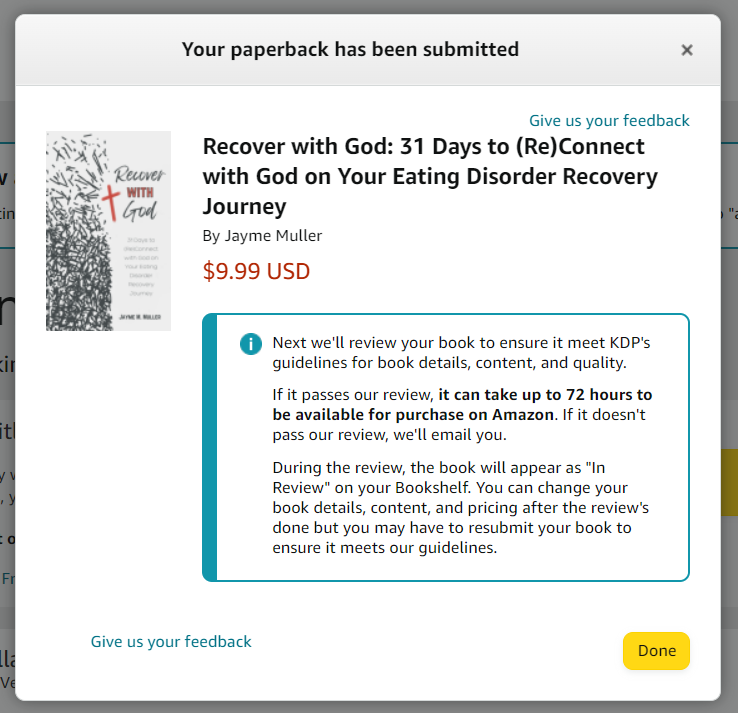
Self Publishing on Amazon: Launching Your Book
Once your book is reviewed and approved, the Amazon KDP team will send you a confirmation email. If you publish more than one version (ex. eBook and paperback), you will receive a separate email for each.
eBook email:

If your book does not pass the review, you will receive an email describing what you need to fix.
For my paperback, I accidentally didn’t remove a small section of text from the cover template that blended in with my cover design. KDP caught it and emailed to let me know. I then had to remove the text in Canva, re-save it as a PDF, upload the new cover in my KDP account, and then click publish again for my book to go back into review.
Paperback email when it was finally approved:

Do You Want to Write a Book?
That’s the question I’ll leave you with.
The barriers to publishing are not what they used to be. You CAN self-publish that book you’ve got swirling in your head right now. I hope these tips and steps above will help you get started.
Let me know if you do. I’d love to answer any questions, or simply cheer you on!

 adventure and the girl
Thanks for this detailed overview of how to get started. We have just released our first version of a kindle ebook and this will be very helpful for the next edition!
LikeLike
I’m happy this will help you! And congratulations on releasing your own book! That’s exciting!!
LikeLiked by 1 person
This was great. God bless you.
LikeLike
I’m so happy it’s helpful! After all my research I wanted to help make it easier for others to publish, too!
LikeLike
Pingback: Why I Published an Eating Disorder Recovery Devotional – adventure and the girl
Thank you so much for the tips. Do you have to have an Amazon seller account and pay a monthly fee to sell a paperback version and/or an ebook version? I fear I will loose money by only selling through Amazon with all of their fees? Am I missing something? Thank you.
Julie
LikeLike
Great question! Nope, I didn’t need an Amazon seller account to sell my book on Amazon. I did everything by creating an Amazon Kindle Direct Publishing (KDP) account. There, you will see a breakdown of the cut Amazon receives and what you would receive, based on the retail price you select for your book.
LikeLike
Did I understand you correctly when you said ebooks should be uploaded as a doc/Word file but hard cover books can be uploaded as pdf’s? I created a cookbook in Canva and downloaded it to my computer as a pdf. Can i uploaded this pdf to KDP?
LikeLike
Hi there! Yes, you understood correctly. For a paperback or hardcover version of your cookbook, you can upload a pdf of the book pages, as well as a pdf of the cover. The nice thing about KDP is that once you start going through the steps to upload, it spells it out well on those pages, too. That was super helpful for me to feel like I wasn’t screwing it up!
LikeLiked by 1 person
I’m curious—how did you overcome the initial imposter syndrome when you decided to write a Christian book? Was there a particular moment or experience that gave you the confidence to move forward, especially with a devotional? Also, do you have any tips for first-time authors struggling with self-doubt as they pursue their own writing and publishing dreams?
LikeLike
That’s a fantastic question! I definitely faced imposter syndrome when writing a devotional. Not feeling qualified or experienced and being an unknown. The pivotal moment for me was realizing that God was asking ME to write it because I can relate to its audience in a unique and personal way. And He showed me the book was needed in a way I was not expecting. I also had to let go of any expectations for numbers and sales and focus on who it could help. Of course, I did add a disclaimer in my book about not being a licensed therapist, or health care professional, and that I have not attended seminary. While that may not help with imposter syndrome, it’s a wise idea in general.
As for advice on self-doubt, for me, what worked was (is) a lot of prayer, a lot of focus off myself, and a lot of surrender that it is not about me. That, and finding a community of like-minded people with similar goals really helps! You feel less alone, can share insights and encouragement, and offer moral (and promotional) support!
I hope that helps! But mostly, if God is in it at every step, you’re gonna be okay.
LikeLike
bsolutely love your journey into self-publishing! It’s inspiring to see how Amazon KDP can turn dreams into reality so quickly. Your step-by-step guide will be incredibly helpful for aspiring authors like me. With the right support from a book publishing company, we can all share our stories. Can’t wait to dive into your insights!
LikeLike
Amazon KDP truly is an incredible, game-changing resource for writers, and I’m happy to help others navigate it!
LikeLike
Pingback: Unlock Your Story: Kindle Direct Publishing Memoir Path
Pingback: How to Start your Amazon KDP Journey: 10 Tips for a Successful Publishing Business - iWriting Solutions
Hey,your article was really helpful, it gave me a hope,I tried but the problem is the ASIN,Number how can i get it ,as its one of the vital information needed
LikeLike
According to Google:
You can find an Amazon Standard Identification Number (ASIN) in a product’s detail page or in the product’s URL:
Product detail page
Look in the Product Details or Product Information section. The ASIN is a combination of 10 letters and numbers.
Product URL
Look for a series of 10 letters and numbers separated from other parts of the URL by slashes. The ASIN is often preceded by “ASIN”.
LikeLike
Pingback: How to Earn Money In Social Media
Wow, this is such a detailed and helpful walkthrough of the self-publishing process! As someone who’s been toying with the idea of passive income and KDP, I really appreciate you breaking down each step and sharing your personal experience. It’s inspiring to see how accessible self-publishing has become.
I’m curious, have you heard of or tried BookAutoAI? I’ve seen it mentioned as a tool for non-fiction books. I’d be interested to hear your thoughts on how AI tools like that fit into the self-publishing landscape you’ve described here.
LikeLiked by 1 person
Thank you for this feedback, Jason! I’m happy you found inspiration from my guide.
Great question. I’ve not heard of BookAutoAI. In general, AI is certainly changing the writing process to make authoring more access well. Though I don’t use it for my writing and don’t know of any specific resources to point to… from what I do know, anyone who chooses to use it should look into any potential copyright issues before proceeding. Overall, I anticipate the legal boundaries of AI will continue to be worked out over the next few years.
LikeLike
Pingback: Sell A Self-Published Book on Amazon? - Book Career In A Year
Pingback: How to Write a Book as a Beginner: A Step-by-Step Guide for Success – orangered-lapwing-624522.hostingersite.com
Pingback: The Fundamentals of KDP Success|45 Days KDP Publishing Series
Great insights on self-publishing! Amazon’s Kindle Direct Publishing (KDP) makes it easier than ever for authors to bring their books to life. From formatting your manuscript to designing an eye-catching cover, KDP offers a seamless way to publish both eBooks and paperbacks. The best part? You keep control of your rights and earn up to 70% royalties! Have you tried optimizing your book description and keywords for better visibility? Marketing plays a huge role in success. Looking forward to more tips!
LikeLike
Appreciate your comment and SEO suggestion!
LikeLike
Thanks for the helpful guide on KDP self-publishing! As someone who runs a small jewelry business selling unique pieces like Irregular Shape Three Pearls Drop Dangle Earrings, I’ve been considering self-publishing a short eBook on styling tips and behind-the-scenes stories. This post gave me a great starting point!
LikeLiked by 1 person
Hi Robin!
Thanks for letting me know this was helpful! I hope your own self-publishing adventure goes well!
LikeLike
Pingback: A Notebook for the Note-Taking Doodler Who Loves Jesus – adventure and the girl
Pingback: How to Self-Publish a Low-Content Book on Amazon Kindle Direct Publishing (KDP) – adventure and the girl
Pingback: How to Self-Publish a Book on Amazon (KDP Publishing)
Pingback: How to Self-Publish a Book on Amazon (KDP Publishing)
https://itsallaboutleadership.com/ Outstanding and very helpful details. I appreciate your willingness to share this valuable information with us.
LikeLike
https://www.suzannebarrentinesmith.com/ Your exceptional and highly informative insights are greatly appreciated. I value your readiness to share this valuable knowledge with us.
LikeLike
Pingback: Life's Mission and the Near-Death Experience - Near-Death Experiences and the Afterlife
Pingback: Amazon KDP manual work hands-on tasks and time costs – BOOK UPLOAD PRO